

How to Set Up a Comfortable Home Workspace: A Simple Guide

How to Set Up a Comfortable Home Workspace: A Simple Guide
More people now work, study, or run a business from home. But working from the sofa or bed for hours can leave you stiff, tired, and distracted. A simple, well-planned workspace can help you feel more comfortable and get more done. You do not need expensive furniture to start.
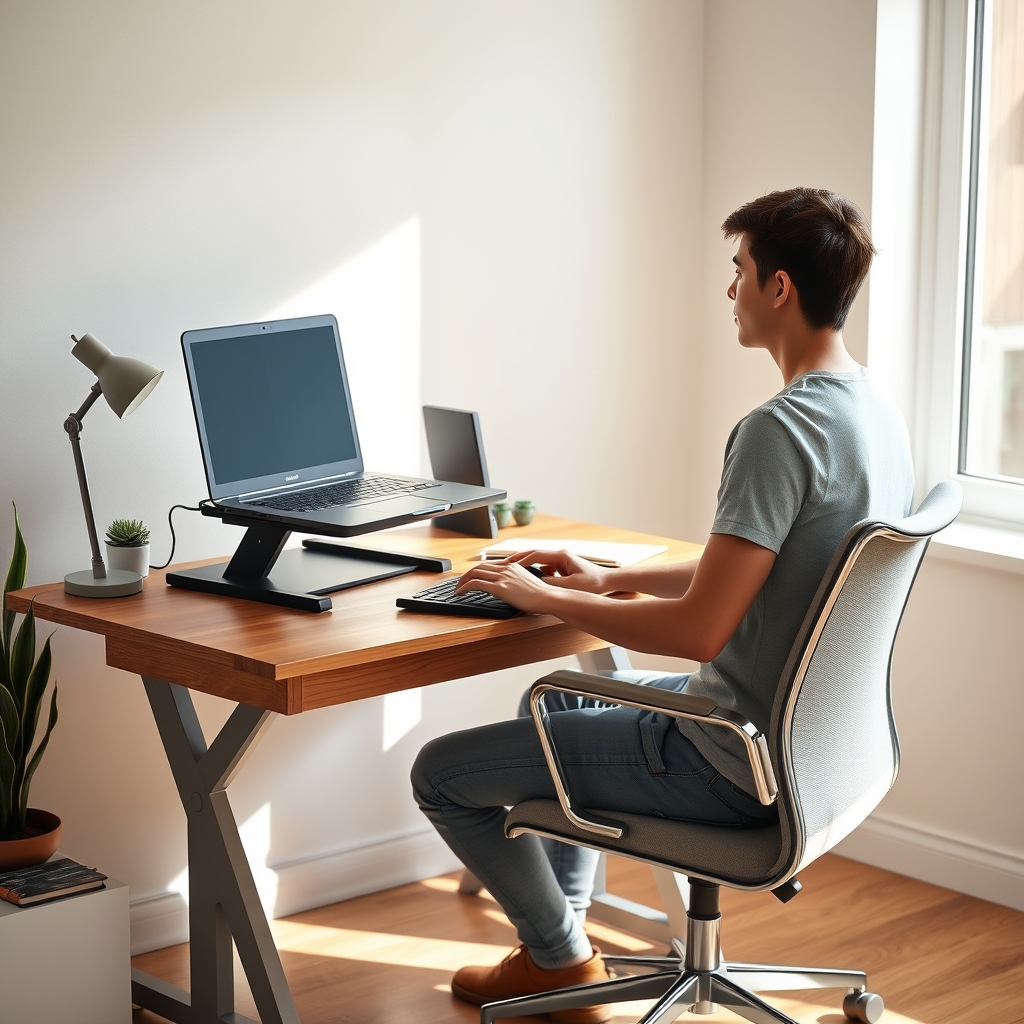
Quick answer: To set up a comfortable home workspace, choose a quiet spot with good light. Sit in a supportive chair with your feet flat on the floor. Place your screen straight in front of you, at least an arm's length away, with the top at or below eye level. Keep your keyboard and mouse close so your elbows stay relaxed by your sides. Reduce glare, keep the space tidy, and take regular breaks.
Step 1: Pick the Right Spot
Start by finding a place you can use for work most days. A small corner can work well.
- Choose a quiet area away from the TV and busy rooms.
- Look for natural light, but avoid sitting with a bright window right behind or in front of your screen.
- Make sure you have power outlets and a good internet signal nearby.
Having a set workspace also helps your brain switch into "work mode." We shared similar advice in our guide on how to study online effectively.

Step 2: Set Up Your Chair
Your chair is one of the most important parts of your workspace. A guide from San Bernardino Community College District notes that "a properly adjusted chair can reduce fatigue by supporting the back, legs, and arms."
- Sit all the way back so your lower back is supported.
- Rest your feet flat on the floor or on a footrest.
- Adjust the height so your knees are about level with your hips.
No office chair? Add a small cushion or rolled towel behind your lower back. Use a sturdy box or a stack of books as a footrest.
Step 3: Place Your Screen Correctly
The U.S. Occupational Safety and Health Administration (OSHA) gives clear tips in its computer workstation guide:
- Distance: "Put monitor directly in front of you and at least 20 inches away." That is about 50 cm, or roughly an arm's length.
- Height: "Place monitor so top line of screen is at or below eye level."
- Position: Keep the screen straight in front of you, not off to the side.
Using a laptop? It is often too low. Raise it on a stand or a stack of books, and use a separate keyboard and mouse.

Step 4: Position Your Keyboard and Mouse
The same college guide suggests keeping your elbows level with the keyboard and resting comfortably at your sides. This helps keep your wrists straight and your shoulders relaxed.
- Keep the keyboard and mouse close, so you do not have to reach.
- Hold the mouse lightly, not tightly.
- Move your whole arm, not just your wrist.
Step 5: Get the Lighting Right
Glare on your screen can make it hard to see. OSHA warns that tilting the screen back "may create glare on the screen from ceiling lighting."
- Place your desk so the window is to the side of your screen, not behind or in front of it.
- Use curtains or blinds to control bright sunlight.
- Add a desk lamp for evening work.
Step 6: Keep It Tidy and Organized
A messy desk can be distracting. Keep only what you need for work close by.
- Use a tray or box for papers.
- Keep cables tidy with clips or ties.
- Put your phone face down or in a drawer while you focus.
- Keep a notebook and pen nearby for quick notes.
Step 7: Take Regular Breaks
Even the best setup is not meant for sitting still all day. Stand up, stretch, and walk around every so often. Look away from your screen at something far away to rest your eyes.
A simple method like working in focused blocks with short breaks can help you remember to move.

Budget-Friendly Workspace Ideas
| Need | Low-Cost Option |
|---|---|
| Laptop stand | A stack of sturdy books or a box |
| Back support | A small cushion or rolled towel |
| Footrest | A low box or step |
| Better lighting | Move your desk near a side window |
| Cable control | Binder clips or simple ties |
Common Home Workspace Mistakes
- Working from the bed or sofa for long periods.
- Looking down at a laptop all day.
- Sitting with a bright window behind your screen.
- Reaching far for the mouse.
- Skipping breaks.
If you have ongoing pain or discomfort, talk to a doctor or health professional for advice.
Work, Learn, and Connect From Home
A good workspace makes it easier to work, learn, and stay in touch with others. On WeConectus, you can connect with people, join communities, and explore digital opportunities, all from your new home setup. Learn more about WeConectus.
Frequently Asked Questions
How far should my screen be from my eyes?
OSHA suggests placing your monitor directly in front of you and at least 20 inches (about 50 cm) away. That is roughly an arm's length.
How high should my monitor be?
OSHA advises placing the screen so the top line is at or below eye level.
Can I use a laptop for my home workspace?
Yes. For long use, raise the laptop so the screen is near eye level, and use a separate keyboard and mouse.
What if I do not have an office chair?
Use a sturdy chair and add a cushion or rolled towel for back support. Use a box or books as a footrest if your feet do not touch the floor.
Where should I put my desk?
Choose a quiet spot with a window to the side of your screen. Avoid having a bright window directly behind or in front of your screen.
How often should I take breaks?
Stand up and move every so often. Many people use short breaks between focused work blocks to remind themselves.
Do I need expensive furniture?
No. Simple changes, like raising your screen and supporting your back, can make a big difference.
Final Thoughts
A comfortable home workspace does not have to cost much. Pick a quiet spot, support your back, place your screen at the right height and distance, and keep your keyboard close. Control glare, stay organized, and take breaks. Small changes can make your work-from-home days more comfortable and productive.
This article is for general information only and is not medical advice. If you have pain or a health condition, speak with a qualified health professional.


